

Using the MCP Server
You’ve connected a client — this page covers what you can do with it: which tools appear, how to curate them with custom MCP servers, and what to ask.
What the server exposes
Section titled “What the server exposes”The default server at https://<your-tenant>.alationcloud.com/ai/mcp/ exposes everything you’re entitled to:
| Source | What appears | Who sees it |
|---|---|---|
| Built-in tools | Catalog search, context retrieval, SQL execution, chart generation, lineage, data quality, and more | Everyone connected to the tenant |
| Built-in agents | Out-of-the-box agents surfaced as callable tools | Everyone |
| Your published agents | Any agent with MCP enabled on its Agent access tab | Everyone, if the agent is published; owner and admins only while it is a draft |
Because every request carries your identity, two users connecting to the same server can see different tool lists and get different results from the same tool. See identity and permissions for why.
The full catalog of built-in tools is in the tools reference, and the built-in agents in the agents reference. To see your live list, open your client’s tool panel (most clients have one), or simply ask: “What Alation tools do you have available?”
Curate with custom MCP servers
Section titled “Curate with custom MCP servers”The default server exposes a lot, and agents work best with the smallest tool set their job needs. Instead of disabling tools client by client, create a custom MCP server: a named server that exposes only the tools you pick, at its own URL.
-
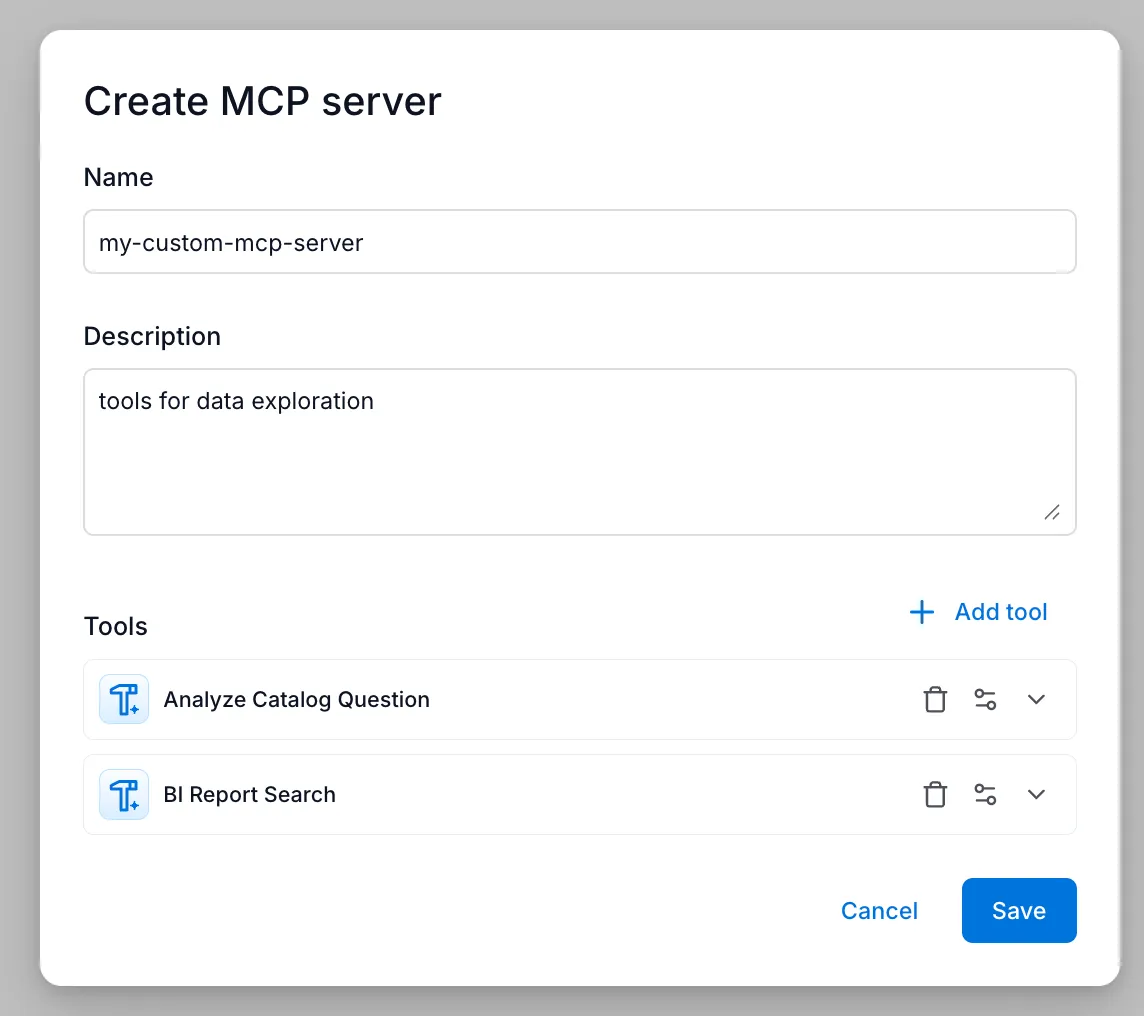
Create the server
From an agent’s Agent access tab, click Add to MCP servers and then New MCP server — or open the MCP servers list in Agent Studio. Give it a name and a description that tells the model what the server is for.
-
Pick the tools
Click Add tool and select just the tools the use case needs — built-in tools, and agents published as tools.
-
Configure tool parameters (optional)
Each tool entry has its own parameter settings, with the same Fixed / User input / Agent determined scopes used everywhere in Agent Studio. Parameters you fix are hidden from the connecting model entirely and injected at execution, so a custom server can pin tools to a domain, a data product, or a filter.
-
Connect your client to the new server
Each custom server has its own URL (
/ai/mcp/<server-id>/), shown in the UI. Point your MCP client at that URL instead of the default/ai/mcp/.
Publish an agent to MCP
Section titled “Publish an agent to MCP”To make a custom agent callable over MCP — by MCP clients or by other agents:
-
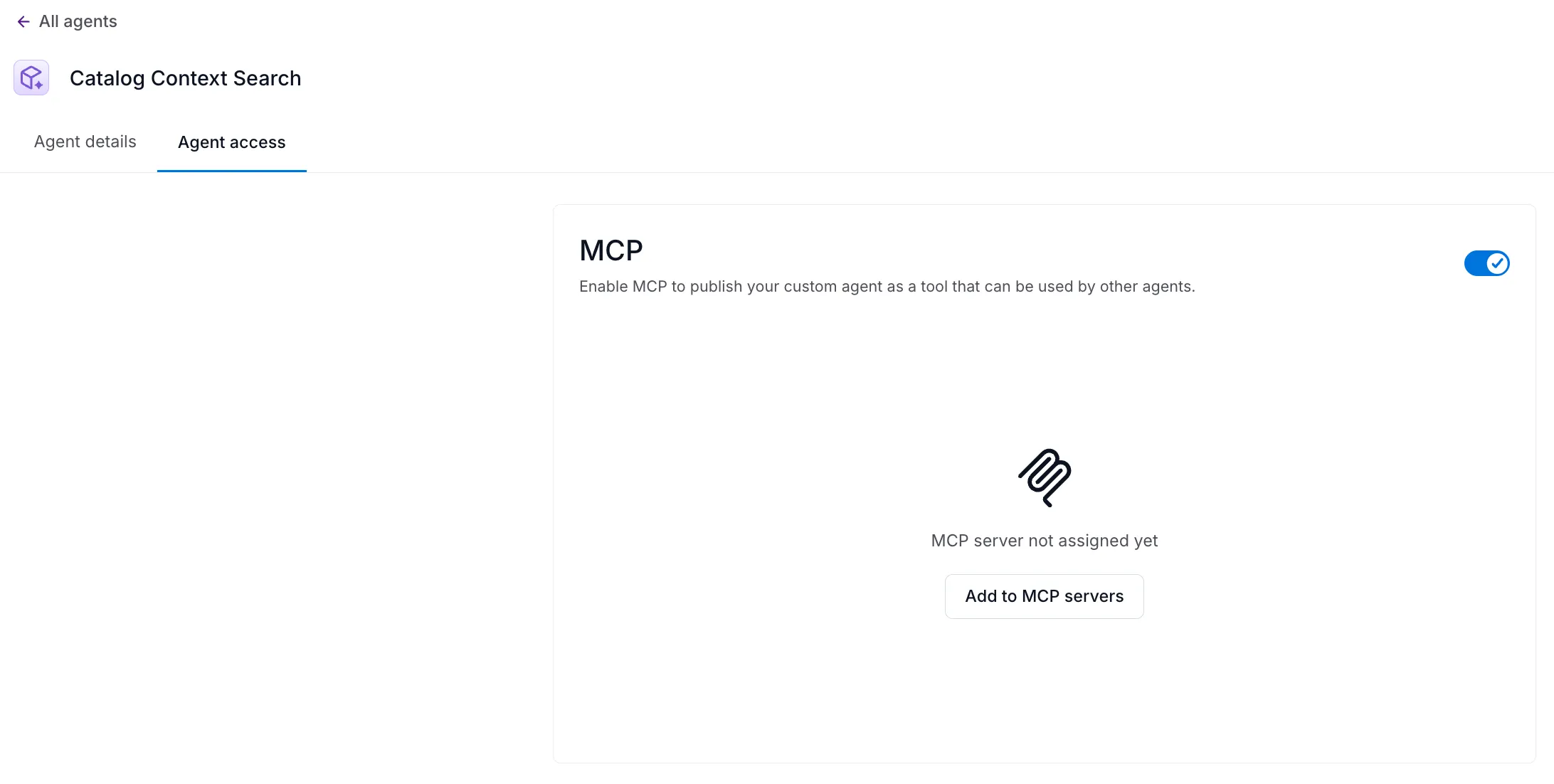
Open the agent and switch to its Agent access tab.
-
Turn on the MCP toggle.
-
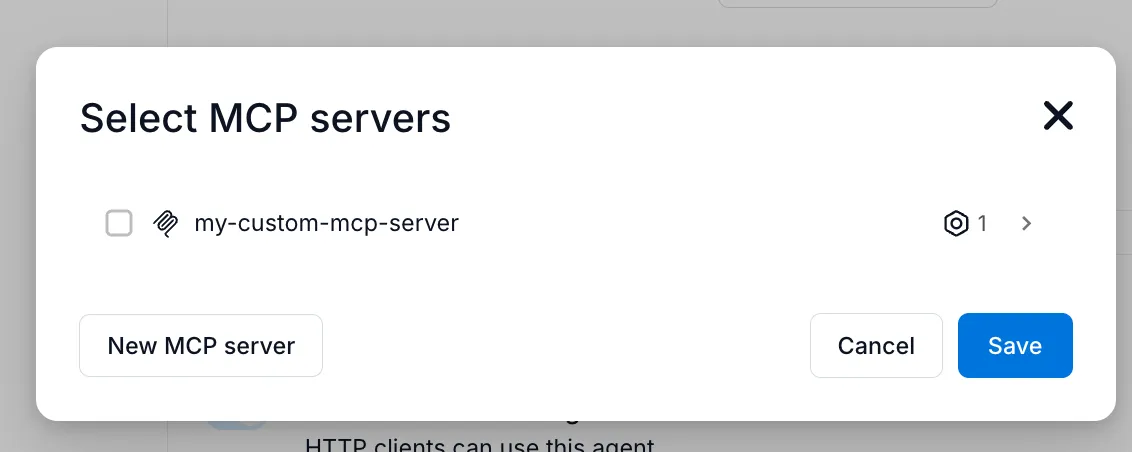
Click Add to MCP servers and pick which custom servers should carry it (it is always available on the default server once published).
The tool’s visibility follows the agent’s own access settings: only people with access to the agent can see or call the resulting tool. Adding it to MCP is independent of who can reach it — set the agent’s access from its Agent Access tab.
Example prompts
Section titled “Example prompts”Discovery and context:
- “Find sales-related tables in the catalog.”
- “What does the
fct_orderstable contain, and who stewards it?” - “What’s our approved definition of customer churn?”
Data questions (require a data product and warehouse credentials):
- “Using the Sales data product, what were the top 10 products by revenue last quarter?”
- “Chart weekly signups from the marketing data product for the past 90 days.”
Governance and lineage:
- “Which dashboards report on customer churn?”
- “Trace the lineage of
dim_customerand summarize the upstream sources.” - “List tables in the raw schema with no description.”
Calling a published agent:
- “Use the
inventory_checkertool to check stock levels for the EMEA region” — whereinventory_checkeris an agent you published to the server.
Hosted vs. local servers
Section titled “Hosted vs. local servers”Agent Studio supports two ways to use MCP servers: hosted MCP servers and local MCP servers. Both expose Agent Studio capabilities over MCP, but they differ in where the server runs and what it can access.
Hosted MCP servers
Section titled “Hosted MCP servers”Most customers use hosted MCP servers by default. In this mode, the MCP servers are hosted by Alation in our cloud.
Hosted MCP servers can expose:
- Base tools
- Base (out-of-the-box) agents
- Custom agents you build in Agent Studio (including those created in the UI)
This is the best option when you want the full Agent Studio experience and the ability to build, publish, and use custom agents outside of Alation.
Local MCP servers
Section titled “Local MCP servers”If you are using the Python SDK, you can also run a local MCP server, meaning you host the MCP server on your own machine using the SDK.
By default, local MCP servers provide access to:
- Base tools (data products, data dictionary, custom fields, data sources)
- Base (out-of-the-box) agents (catalog context search, query flow, SQL query)
Custom agents you build in the Agent Studio UI always run in Alation, but a local MCP server can expose them too: enable the custom_agent tool (it is off by default) and the server proxies requests to your agent by its ID.
Setup instructions for running a local MCP server are available here.
At a glance
Section titled “At a glance”| Dimension | Hosted MCP server | Local MCP server (SDK) |
|---|---|---|
| Where it runs | Managed by Alation in the cloud | Your machine or infrastructure |
| Recommended for | Most customers (the default) | Development and SDK-based workflows |
| Built-in tools | Yes | Yes (configurable subset) |
| Out-of-the-box agents | Yes | Yes |
| Custom agents (UI-built) | Yes, after publishing | Via the custom_agent tool (off by default); the agent still runs in Alation |
| Custom MCP servers (curated tool sets) | Yes | Configure the tool set via flags instead |
| Infrastructure required | None | Self-managed |
Good to know
Section titled “Good to know”- Tool approvals are not enforced over MCP. Each MCP client is responsible for setting and enforcing tool restrictions client-side. Be careful when using tools that can modify Alation objects.
- Tool calls are metered. Each call to a built-in tool counts as an action for usage purposes, whether it comes from MCP, Slack, or the web UI.
- Timeouts apply. Calls to custom HTTP tools time out after 30 seconds by default (configurable up to 60 per tool); calls to external MCP servers time out after 60 seconds by default (configurable up to 120). Some clients impose their own response limits — see known limitations.