

Credentials for Data Product Queries
When an agent queries a data product with the SQL Execution or Get Data Schema tool, the query runs under some set of credentials on the underlying data source. How those credentials are chosen depends on how the tool is configured and whether your instance has the service account feature enabled.
How credentials are resolved
Section titled “How credentials are resolved”The tool editor exposes an auth_id / auth_mode selector that controls how credentials are resolved. Admins can choose between two modes:
| Mode | Selector shows | What it does |
|---|---|---|
| Default | auth_id | When auth_id is empty, resolves the user’s own credential first, then falls back to the data product’s shared service account if one is bound. If multiple credentials exist, the most recent active one is selected. If auth_id is set to a specific value, that credential is used directly without resolution. This is the recommended mode for most use cases. |
| MDE credentials | auth_mode | Forces the datasource’s MDE (Metadata Extraction) service account, skipping credential resolution entirely. Use this when the MDE service account is the only credential that should run queries. |
Here is the full resolution order for credentials in Default mode:
-
The user’s own credentials. If the person running the agent has active credentials for the data source, the most recent one is used — regardless of any other setting. Users add their own credentials from the data product’s chat UI in the Data Marketplace.
-
A shared service account, when the service account feature is enabled and a service account is configured on the data source and bound to this specific data product. If multiple service accounts are bound, the most recent active one is selected. See steps below for adding a service account.
-
Otherwise, the query fails with:
No auth ID was provided or configured for data product. Please configurecredentials for this data product in the Alation catalog or contact youradministrator.
In MDE credentials mode, steps 1–2 are skipped — the query always uses the datasource’s MDE service account directly.
The right setup depends on whether your instance has the service account feature enabled. If you are not sure, ask your Alation administrator. The two sections below cover each case.
If the service account feature is enabled
Section titled “If the service account feature is enabled”Set up a shared service account so end users can query the data product without each authenticating to the underlying data source. This is a two-part process: configure the service account on the data source, then confirm the agent’s tools use the right auth mode.
1. Add a service account to the data source
Section titled “1. Add a service account to the data source”-
Navigate to the underlying data source for the data product, and open Settings in the right-hand options panel.
-
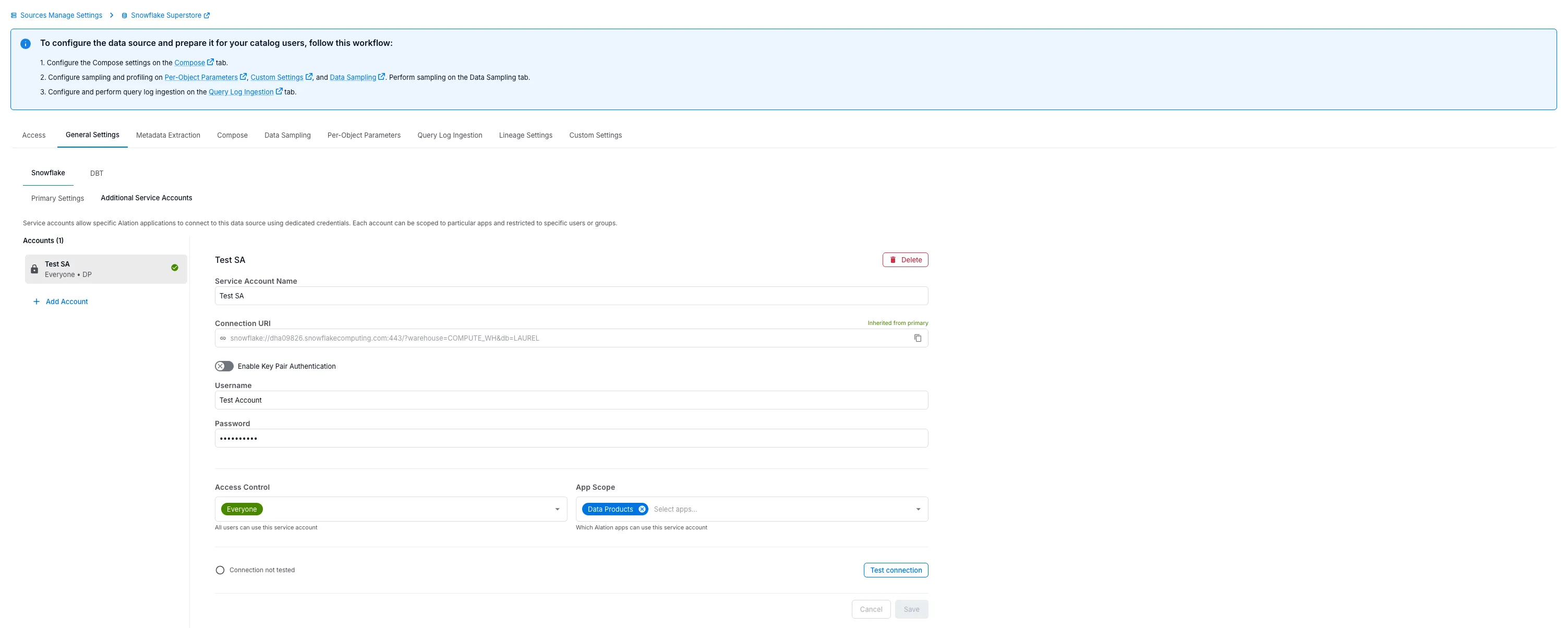
Go to General Settings > Additional Service Accounts and add a service account to use for querying data. This can be the same service account used for metadata extraction, as long as it carries query-execution permissions.
-
Set App Scope to Data Products. Optionally set Access Control to the specific users and groups who should be able to use the shared credentials.
-
Bind the service account to each data product it should serve. App Scope alone is not enough — the service account is only used for data products it is explicitly bound to. A Server, Source, or Data Product admin can add the binding.
-
Click Test Connection to confirm the credentials work.
2. Confirm the agent uses Default mode
Section titled “2. Confirm the agent uses Default mode”-
Edit the agent and open the Tools section.
-
On the SQL Execution tool (and Get Data Schema, if the agent uses it), confirm the parameter row shows auth_id (not
auth_mode) and that the value is empty. Whenauth_idis empty, the tool resolves the user’s own credential first, then falls back to the shared service account you configured in step 1.
The default mode (auth_id) is the recommended configuration for shared service accounts. It preserves per-user warehouse attribution when users have their own credentials, while still letting users without credentials query via the shared account.
If the service account feature is not enabled
Section titled “If the service account feature is not enabled”Without the service account feature, queries run as the user’s own credentials. Each user must authenticate to the data source from the data product’s chat UI in the Data Marketplace before their queries succeed.
Troubleshooting
Section titled “Troubleshooting”“No auth ID was provided or configured for data product.” The user running the agent has no active credentials, and no shared service account is available to the query. Confirm one of the following is true:
- The user has active credentials for the data source (adding them from the data product’s chat UI gives them their own
auth_id). - The service account feature is enabled, the tool uses the default auth mode (
auth_id), and the data source has an Additional Service Accounts entry with App Scope set to Data Products that the querying user is allowed to use (check Access Control and Test Connection) and that is bound to this data product.
Also confirm the data product’s delivery system still points at a data source with working credentials — a changed connection URI can break the match.
Queries fail with MDE credentials mode enabled. If the tool uses MDE credentials mode, confirm the datasource’s MDE service account credential is active and not expired. This mode skips credential resolution and uses the MDE account directly.