

Machine-to-Machine OAuth Clients
Generating Client ID and Client Secret
Section titled “Generating Client ID and Client Secret”- Navigate to
https://your-alation-instance.alationcloud.com/admin/auth/ - Scroll down until you find OAuth Client Applications
- Click on Add
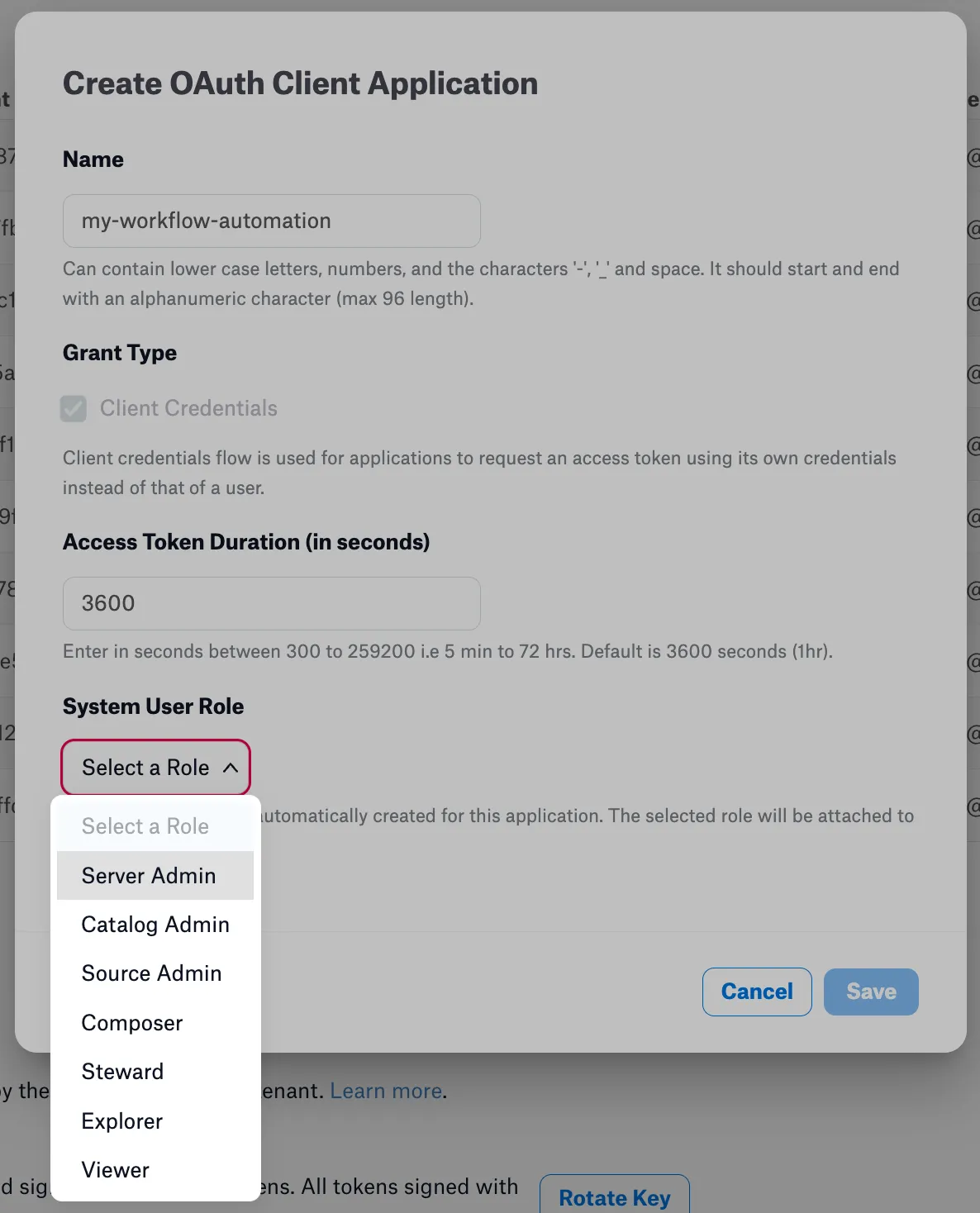
- Give it a Name, set the Access Token Duration (in seconds, min 5 mins, max 72 hours)
- Select a System User Role - this will determine the permissions the OAuth client will have when accessing Alation resources. Always follow the principle of least privilege and only assign the minimum role necessary for the client to perform its tasks. See Roles and what they can reach for a breakdown of each role.
- On clicking save, the Client ID and Client Secret will be generated. Make sure to copy and securely store the Client Secret as it will not be shown again.
Generating JWT Access Tokens
Section titled “Generating JWT Access Tokens”Once you have the client_id and client_secret, you can generate the JWT access token using the following steps:
curl --request POST \ --url https://your-alation-instance.alationcloud.com/oauth/v2/token/ \ --header 'accept: application/json' \ --header 'content-type: application/x-www-form-urlencoded' \ --data grant_type=client_credentials \ --data client_id=<client-id from above step> \ --data client_secret=<client-secret from above step>The response will contain a JWT token that’s valid for the duration you specified when creating the OAuth client. This can be used to access the REST APIs or the MCP server.
Usage in Production Systems
Section titled “Usage in Production Systems”
To ensure unattended flows work seamlessly in production systems, implement a step/node that will fetch a new Access Token using the above curl command before making any API calls.
This ensures that your system always has a valid token and can handle token expiration gracefully.
Configuring Data Warehouse Credentials
Section titled “Configuring Data Warehouse Credentials”When using M2M authentication with agents or tools that execute SQL queries, you must configure data warehouse credentials for each data product you want to query. Credentials are stored per M2M OAuth client — each client must configure its own credentials, and the setup applies only to the client whose access token is used in the request.
Create credentials
Section titled “Create credentials”After obtaining your access token, configure credentials for your data product:
curl -X POST "https://your-alation-instance.alationcloud.com/api/v2/auth/credentials/" \ -H "Authorization: Bearer <access_token>" \ -H "Content-Type: application/json" \ -d '{ "state": "unique_identifier", "username": "your_datasource_username", "password": "your_datasource_password", "dp_id": "YOUR_DATA_PRODUCT_ID" }'| Parameter | Required | Description |
|---|---|---|
state | Yes | A unique identifier for this credential configuration |
username | Yes | Username for the data warehouse |
dp_id | Yes | The Data Product ID to associate these credentials with |
password | No | Password for the data warehouse (use for basic auth) |
private_key | No | Private key string for key-pair authentication (e.g. Snowflake) |
passphrase | No | Passphrase for an encrypted private key |
Provide either password (basic auth) or private_key (key-pair auth), but not both.
Once configured, those credentials are automatically used for that M2M client when calling SQL-executing agents (Query, Data Product Query, Analytics, Chart Generation) or tools (SQL Execution, Get Data Schema).