

n8n MCP Client
Connect your Alation catalog to n8n using the Remote MCP server with OAuth authentication.
Prerequisites
Section titled “Prerequisites”- OAuth Client credentials from your Alation instance or a Server Admin role to create one.
- n8n instance with built-in MCP Client Tool node support
Add an MCP Client Node in n8n
Section titled “Add an MCP Client Node in n8n”-
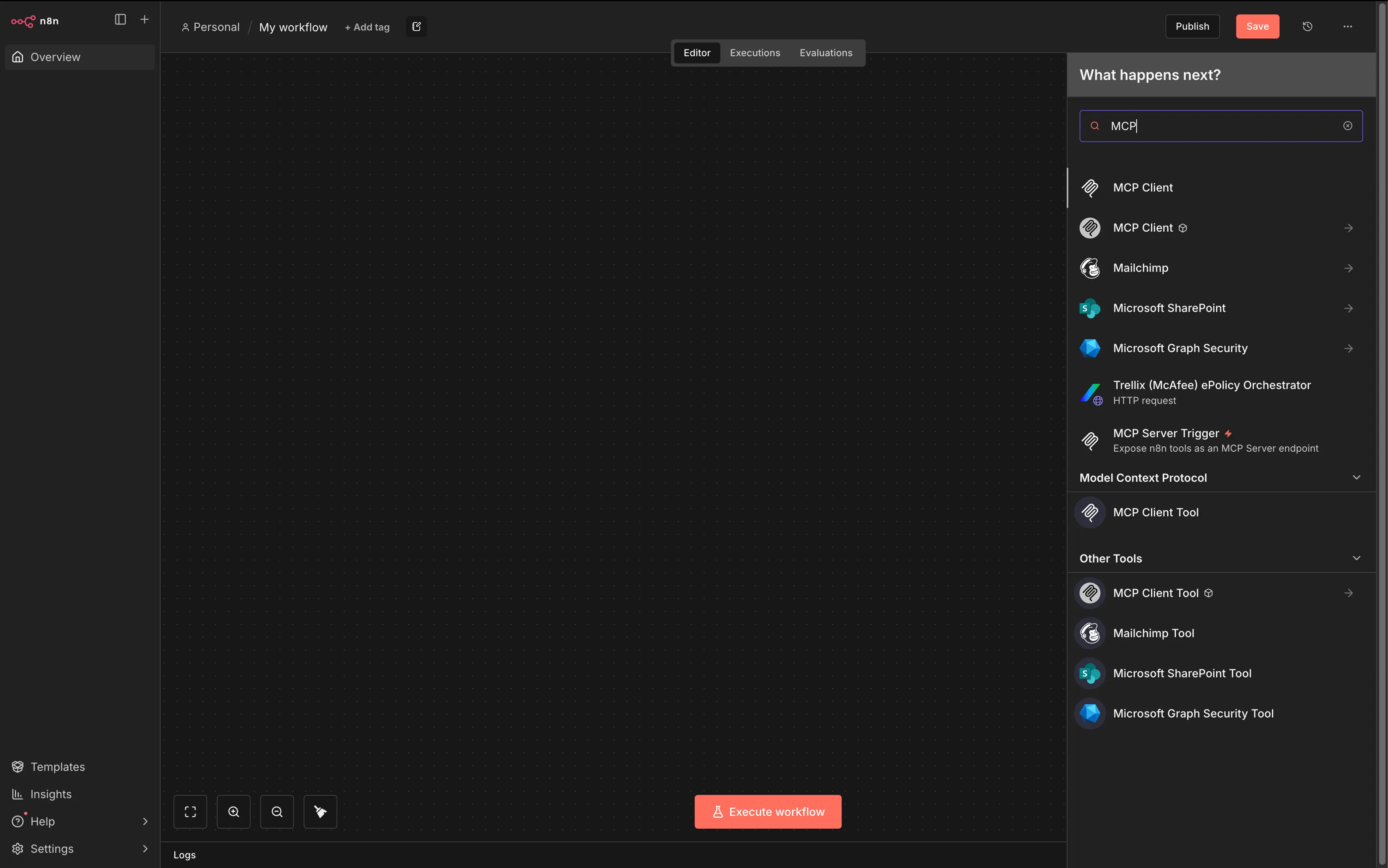
Search for MCP Client Tool
In the n8n editor, search for “MCP” in the node panel. Select MCP Client Tool under “Model Context Protocol” (the built-in node, not the community package).
-
Configure server transport
Set the following parameters:
Field Value Server Transport HTTP StreamableMCP Endpoint URL https://<YOUR_INSTANCE>.alationcloud.com/ai/mcp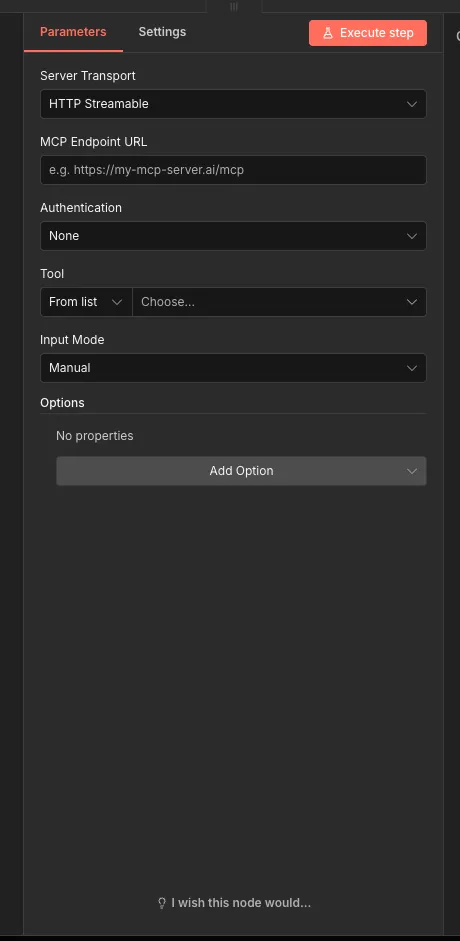
Connecting (Authentication)
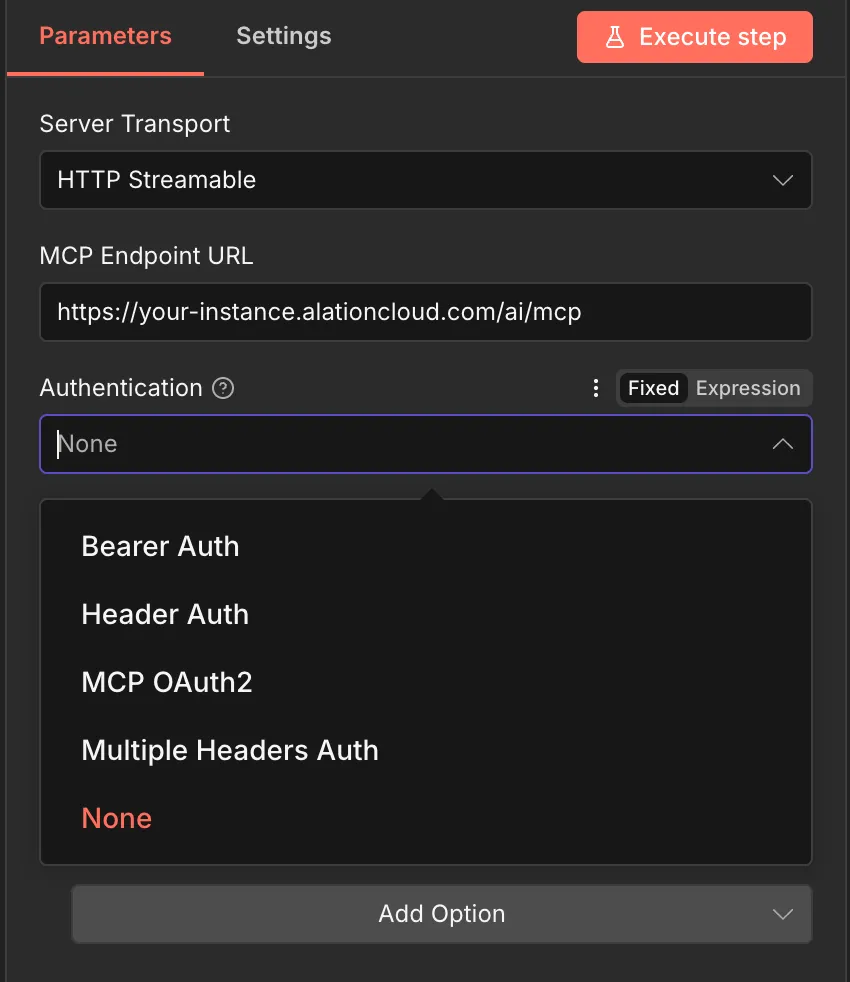
Section titled “Connecting (Authentication)”Alation supports two authentication methods:
| Method | Use Case |
|---|---|
| MCP OAuth2 | Recommended for user-delegated access |
| Bearer Auth | Service account style access (requires manual token refresh) |
MCP OAuth2 Setup
Section titled “MCP OAuth2 Setup”-
Select MCP OAuth2 authentication
In the Authentication dropdown, select MCP OAuth2, then click the credential dropdown and select Create New Credential.
-
Disable Dynamic Client Registration
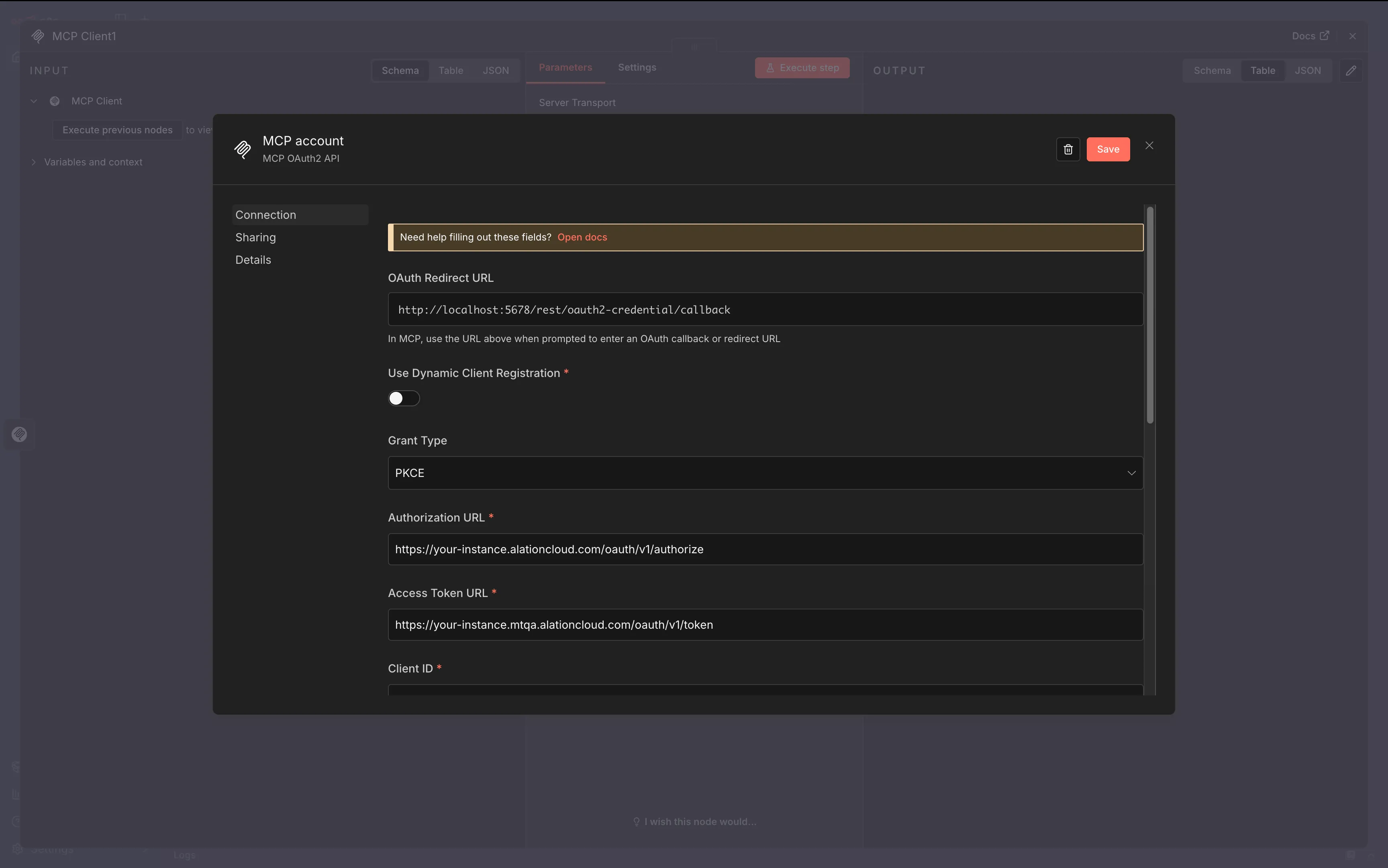
Toggle Use Dynamic Client Registration to Off. This reveals the manual OAuth configuration fields.
-
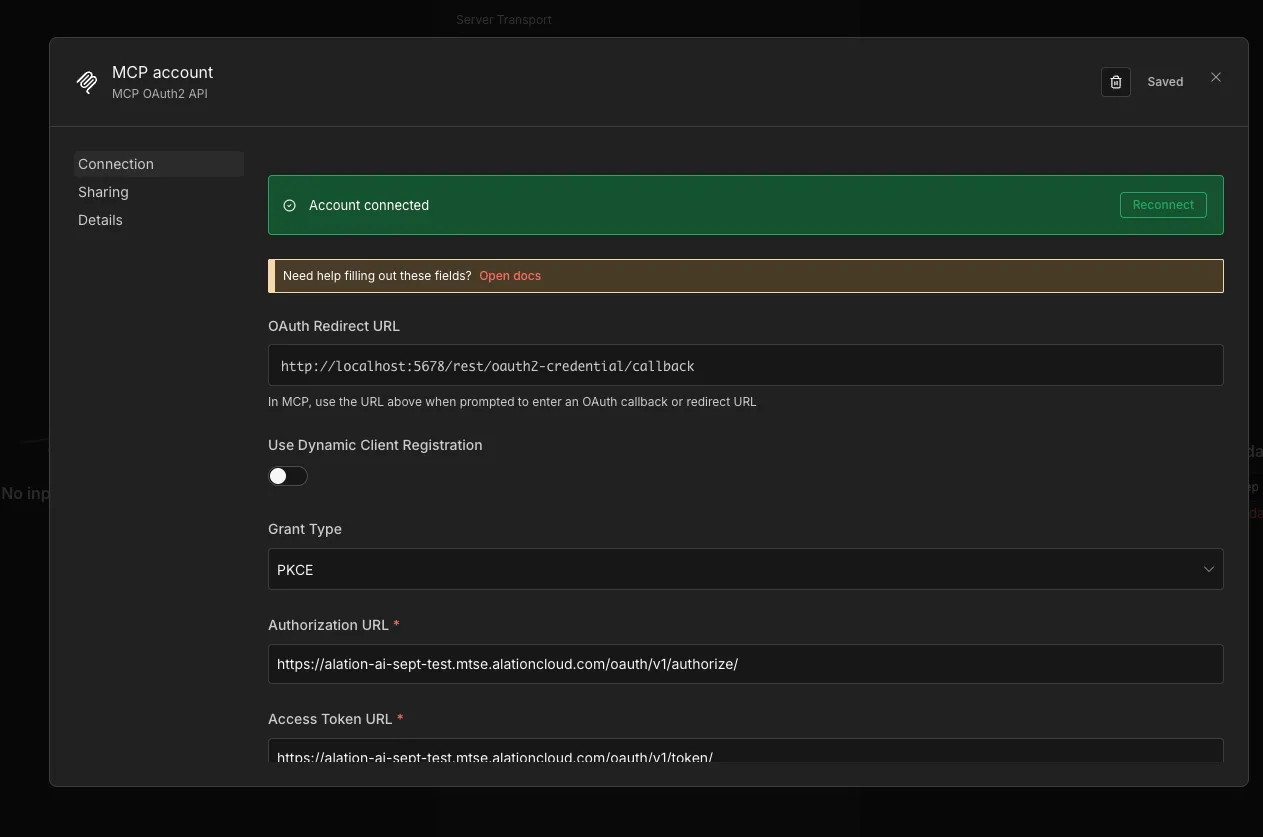
Note the OAuth Redirect URL
Copy the OAuth Redirect URL shown at the top of the form (e.g.,
http://localhost:5678/rest/oauth2-credential/callback). You’ll need this when creating your OAuth Client in Alation. -
Create an OAuth Client in Alation
Refer to the OAuth 2.0 User Initiated Authentication Guide to create an OAuth Client. Use these settings:
Field Value name Any name (e.g., n8n-mcp-client)client_type confidentialredirect_uris The OAuth Redirect URL from Step 3 refresh_token_expiry 259200(3 days in seconds)access_token_expiry 3600(1 hour in seconds)pkce_required trueSave the
client_idandclient_secretsecurely. -
Configure OAuth2 credentials
Fill in the credential form:
Field Value Grant Type PKCEAuthorization URL https://<YOUR_INSTANCE>.alationcloud.com/oauth/v1/authorize/Access Token URL https://<YOUR_INSTANCE>.alationcloud.com/oauth/v1/token/Client ID Your client ID from Alation Client Secret Your client secret from Alation Scope Leave blank Auth URI Query Parameters Leave blank Authentication Header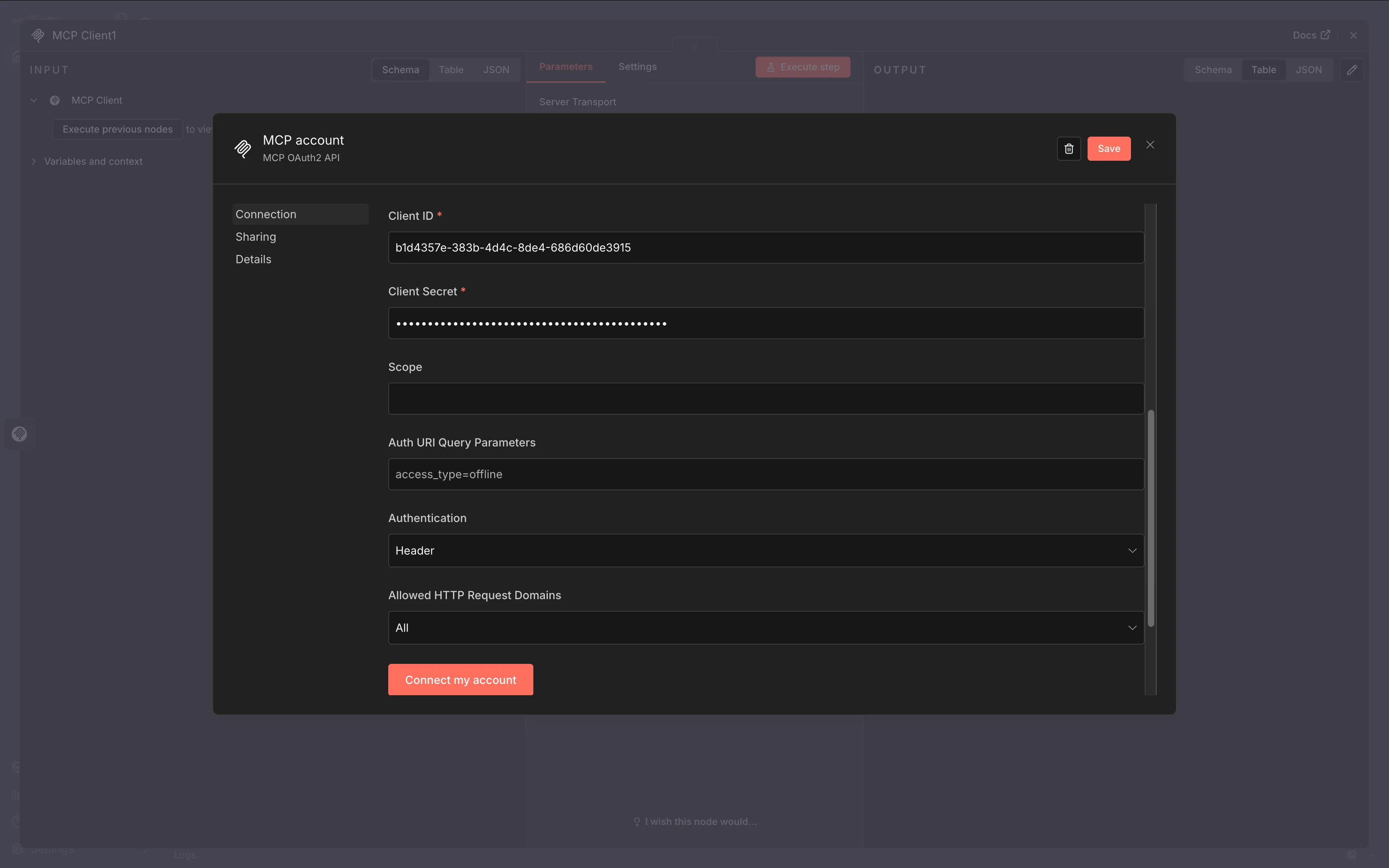
-
Connect your account
Click Connect my account. A browser window opens for Alation login. Sign in with your credentials.
-
Verify connection
After signing in, you’ll see “Account connected”. Click Save to close the credential dialog.
Bearer Auth setup
Section titled “Bearer Auth setup”-
Obtain an access token
Refer to the OAuth 2.0 M2M Authentication Guide to create an OAuth Client and obtain an access token.
-
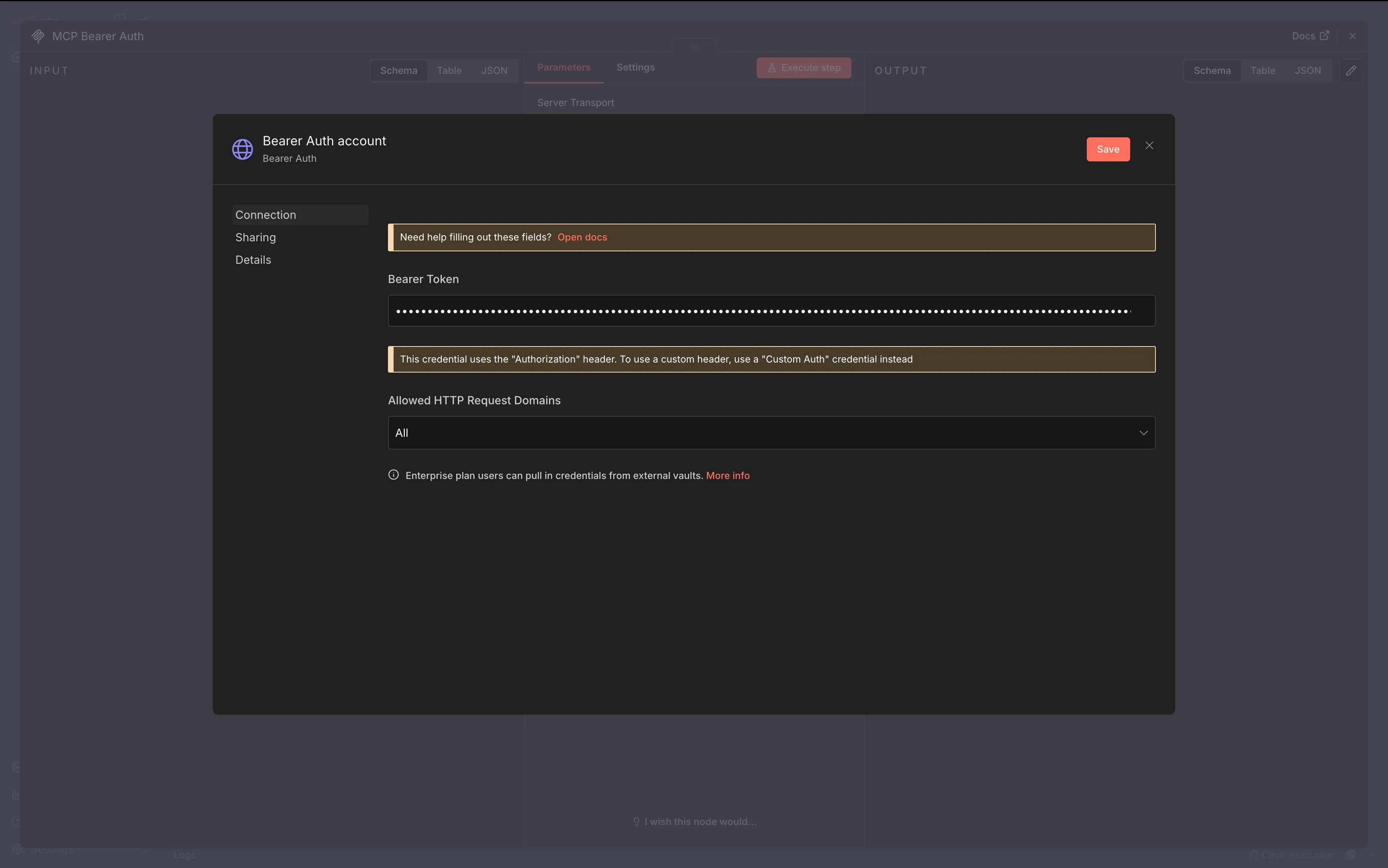
Configure Bearer Auth
Select Bearer Auth from the Authentication dropdown, then enter your access token.
-
Save credentials
Click Save to close the credential dialog.
Troubleshooting
Section titled “Troubleshooting”-
n8n version compatibility? Ensure you’re running n8n version 1.93 or later, which includes built-in MCP Client Tool support with OAuth.
-
Zscaler or VPN issues with localhost? When running n8n locally (localhost), disable Zscaler or other security proxies before attempting the OAuth flow, as they can interfere with the authentication redirect.
-
OAuth flow fails or loops? Log out of any existing Alation sessions in your browser before attempting the OAuth login.
-
Authentication errors? Verify the Authorization URL and Access Token URL include a trailing slash (e.g.,
.../authorize/not.../authorize). -
Token expired with Bearer Auth? Bearer tokens need manual refresh when they expire. Consider using MCP OAuth2 for automatic token refresh.