

Slack setup
The Alation AI Assistant brings your Alation AI agents into Slack. You can chat with agents in DMs, @mention them in channels, and configure which agents are available from the App Home tab.
Walkthrough
Section titled “Walkthrough”This video covers connecting your Alation account, picking agents, and asking your first question.
The rest of this page walks through each step in detail.
Prerequisites
Section titled “Prerequisites”- An Alation Cloud instance with Agent Studio agents published
- A Slack workspace where you can install apps
- An install URL from your Alation admin (the app is in private preview)
Installing the app
Section titled “Installing the app”-
Open the install URL in your browser. Slack shows the permission consent screen for your workspace.
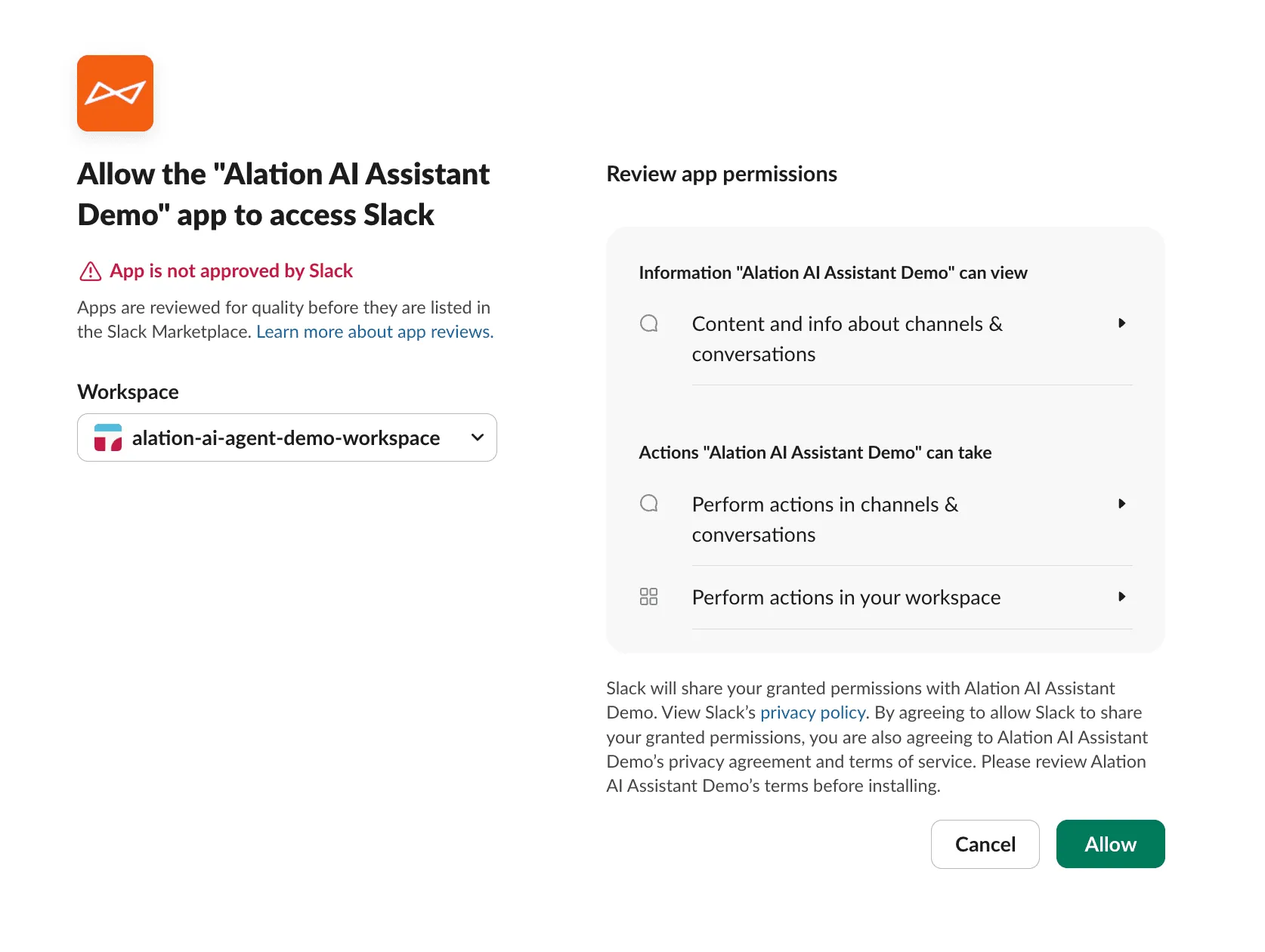
Review the permissions and click Allow.
-
Enter your company’s Alation domain (the part before
.alationcloud.com).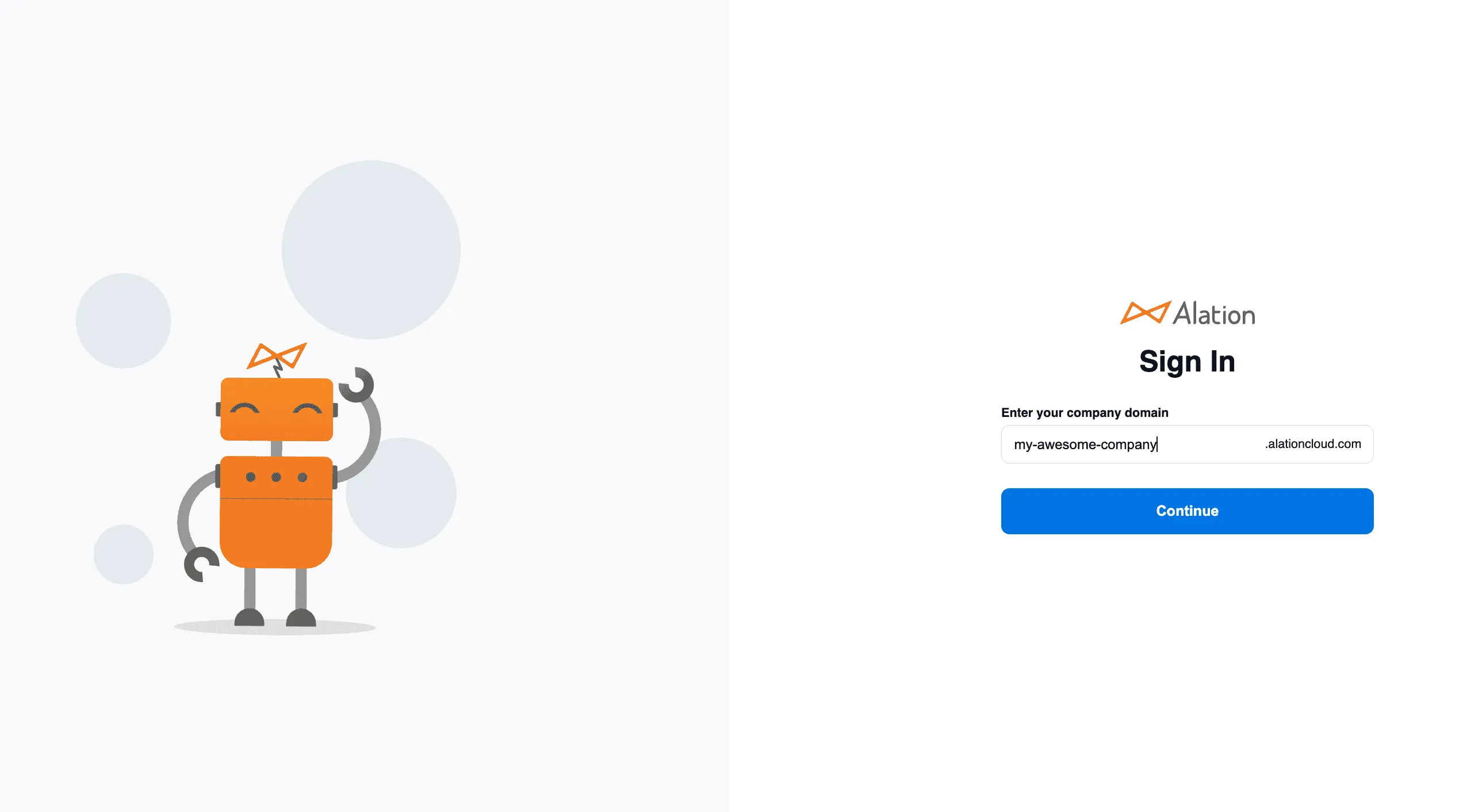
Click Continue.
-
You should see the success confirmation.
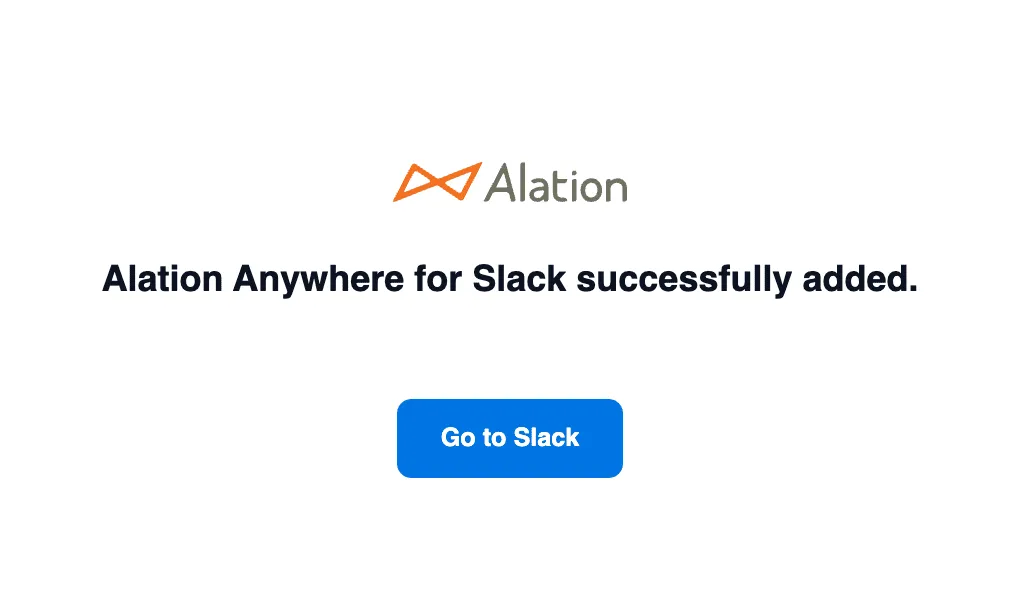
Click Go to Slack to return to your workspace.
Connecting your Alation account
Section titled “Connecting your Alation account”You can connect from two places:
From the Home tab: Open the Alation AI Assistant app and click Connect to Alation.
From a channel: @mention the assistant — if you’re not connected, you’ll see an ephemeral prompt with a connect button.
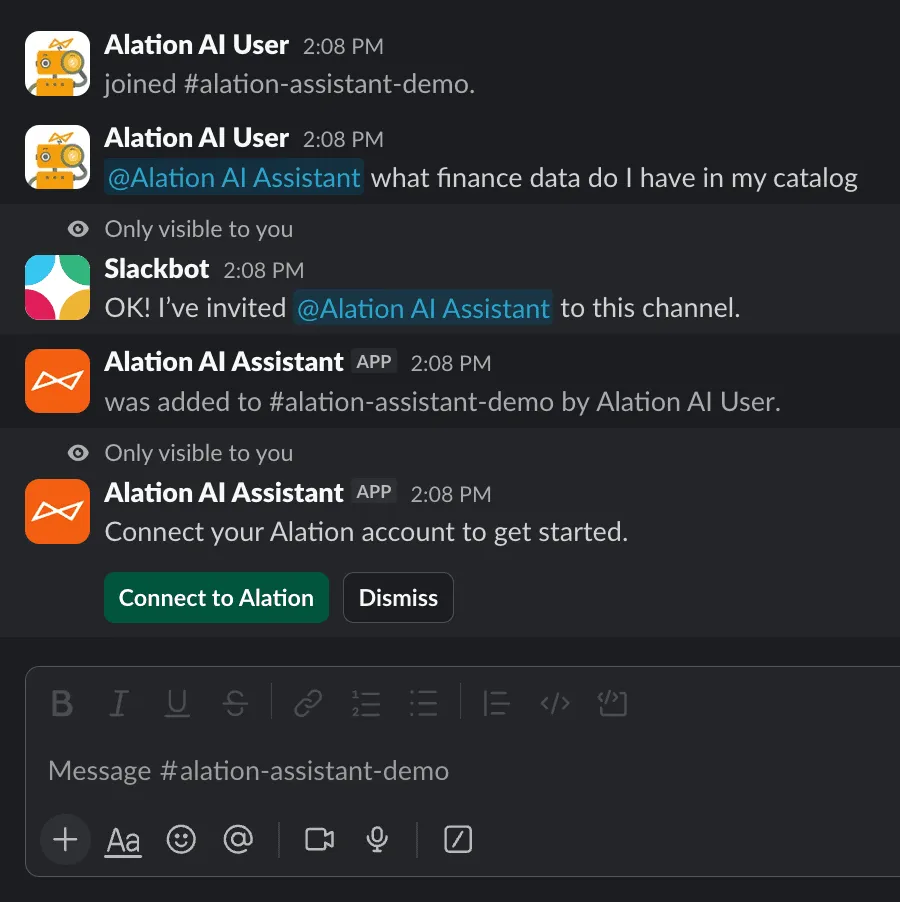
Click Connect to Alation, complete the sign-in in your browser, and you’ll see a confirmation back in Slack.
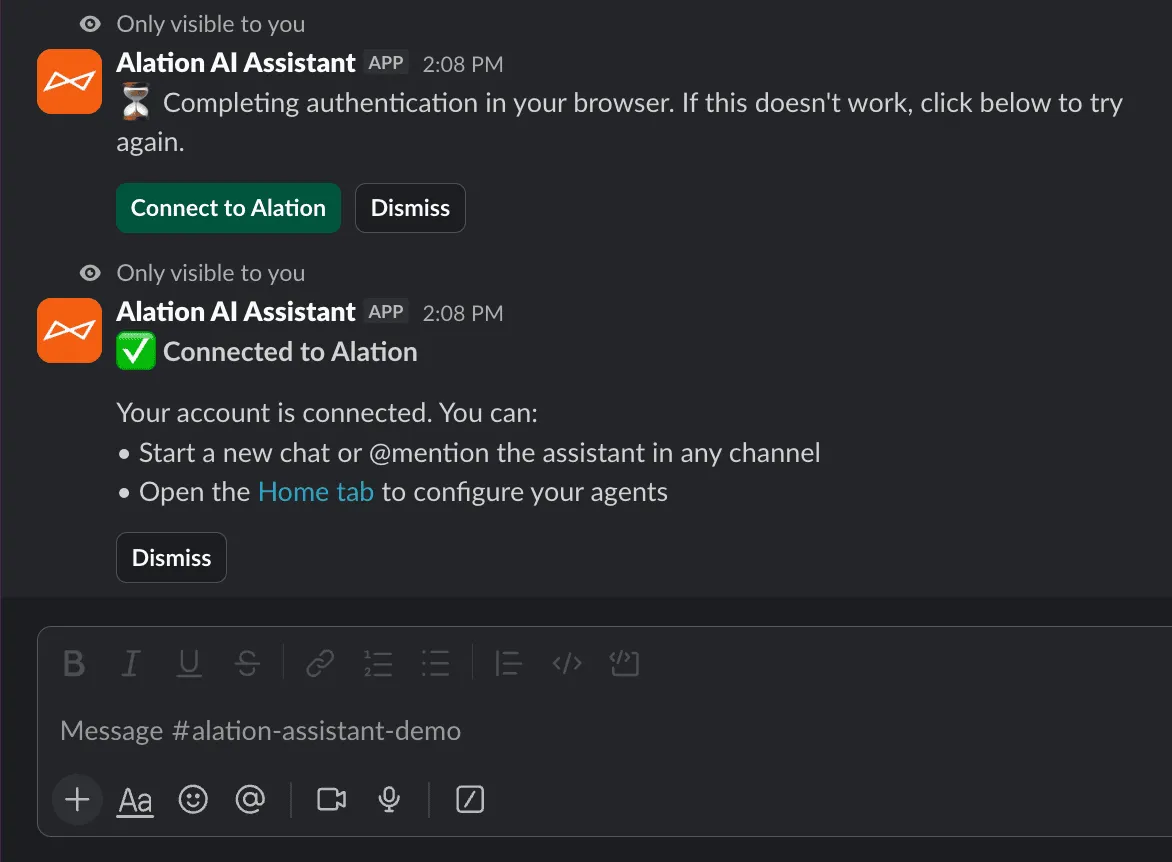
Click Dismiss to clear the messages once you’re done.
Authentication and permissions
Section titled “Authentication and permissions”When you connect your Alation account, the Slack app logs in as you. It inherits your Alation permissions — if you can run an agent in Agent Studio, you can run the same agent in Slack (as long as it’s compatible).
Configuring your agents
Section titled “Configuring your agents”After connecting, the Home tab shows your agent settings. All settings are per-user, so your choices don’t affect anyone else in the workspace.
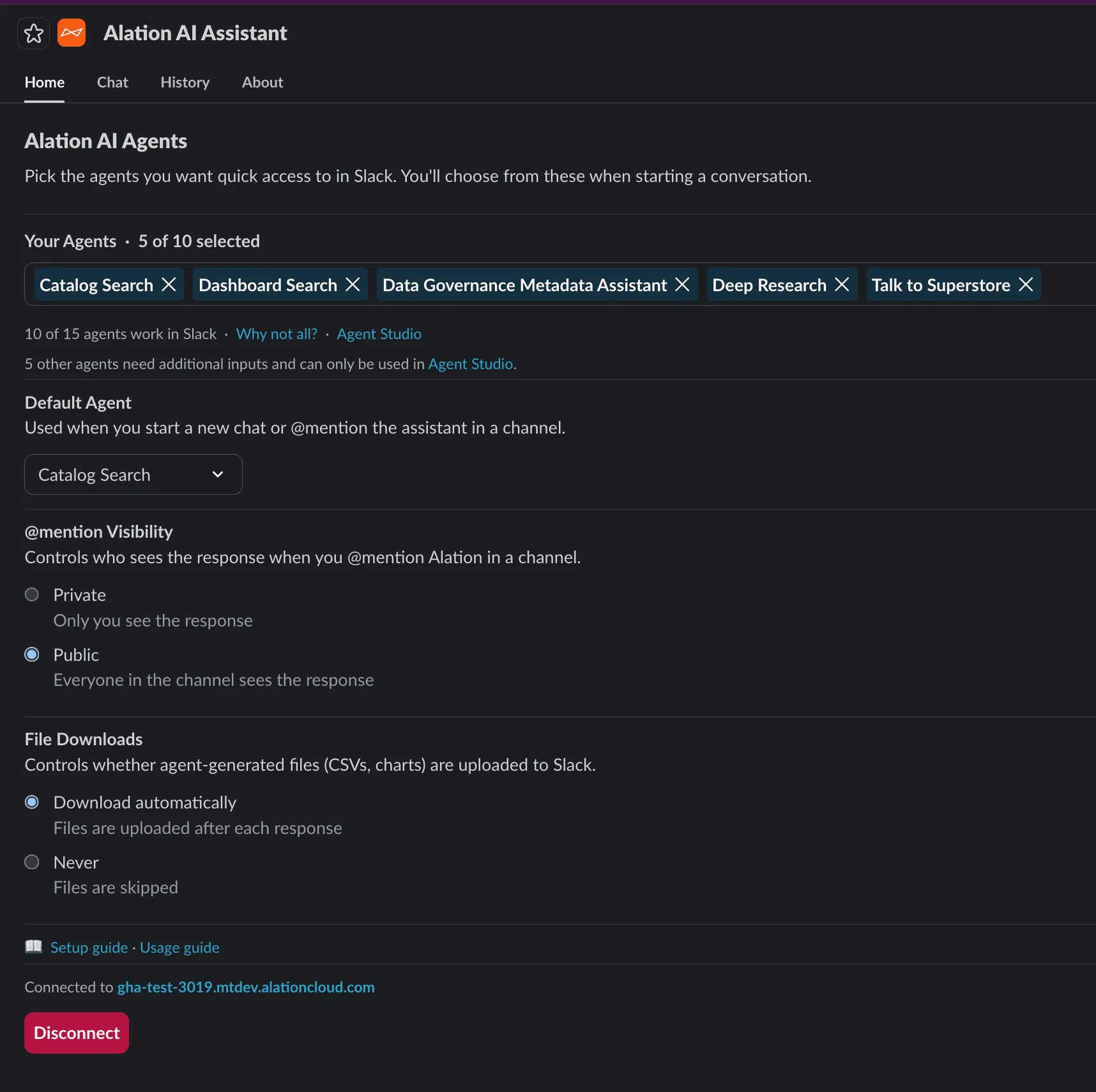
Your agents
Section titled “Your agents”Select which agents you want available in your Slack conversations. A default agent is pre-selected when you first connect.
Default agent
Section titled “Default agent”The agent used when you start a new chat or @mention the assistant in a channel. Change it anytime from the dropdown.
@mention visibility
Section titled “@mention visibility”Controls who sees the response when you @mention the assistant in a channel:
- Private — only you see the response, sent as a DM
- Public — everyone in the channel sees the response in the thread
File downloads
Section titled “File downloads”Controls whether agent-generated files (CSVs, charts) are uploaded to Slack after each response:
- Download automatically — files appear in the thread
- Never — files are skipped, but the response tells you they’re available