Cursor
Available from 2026.2.0 Connect your Alation catalog to Cursor using the Remote MCP Server with OAuth authentication.
Prerequisites
Section titled “Prerequisites”- OAuth Client credentials from your Alation instance (Create OAuth Client)
- Cursor v0.45.6 or later
Add Custom MCP
Section titled “Add Custom MCP”-
Open MCP Settings
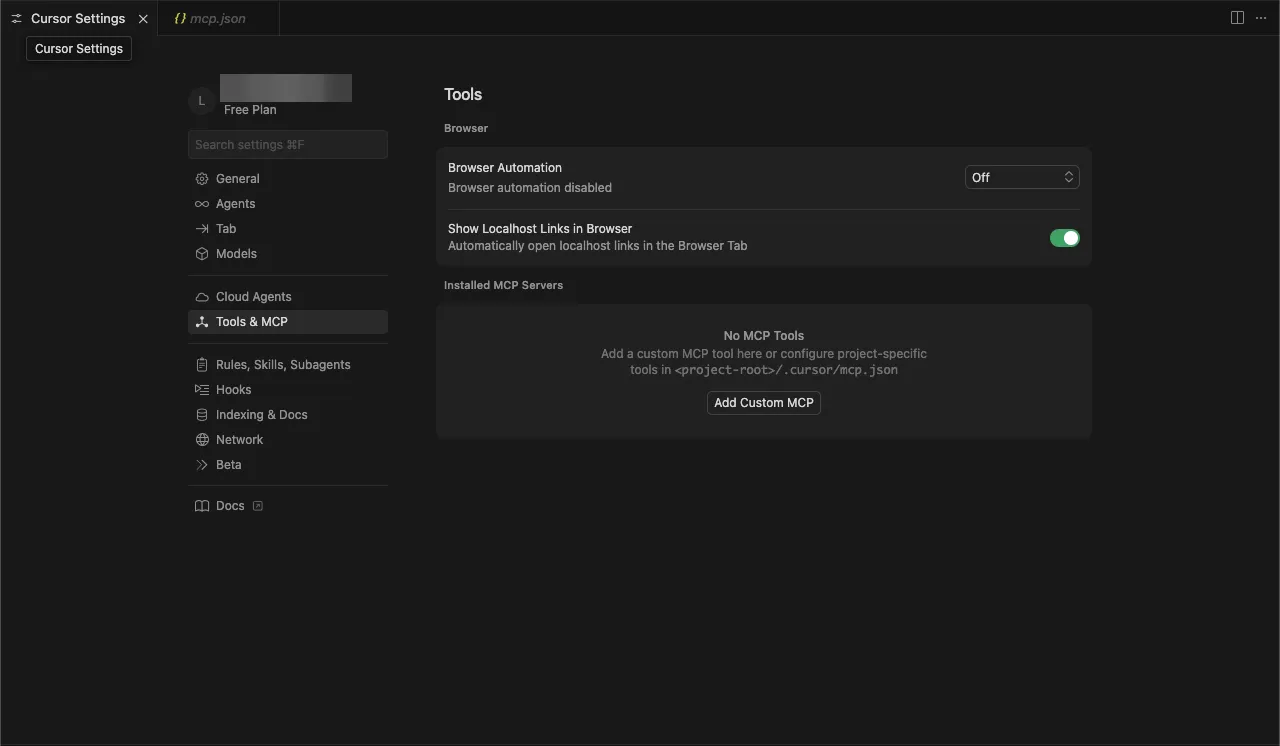
Navigate to Tools & MCP tab on the Cursor Settings page.
-
Add Custom MCP
Click on the Add Custom MCP button to start the configuration process. This will open an
mcp.jsonconfiguration file where you can specify the details for your custom MCP.
Adding the MCP Server
Section titled “Adding the MCP Server”Copy and Paste the following json into the mcp.json file.
Replace the placeholder values with your actual Alation instance details.
{ "mcpServers": { "alation-server": { "url": "https://<your-instance>.alationcloud.com/ai/mcp/", "auth": { "CLIENT_ID": "<client_id>", "CLIENT_SECRET": "<client_secret>" } } }}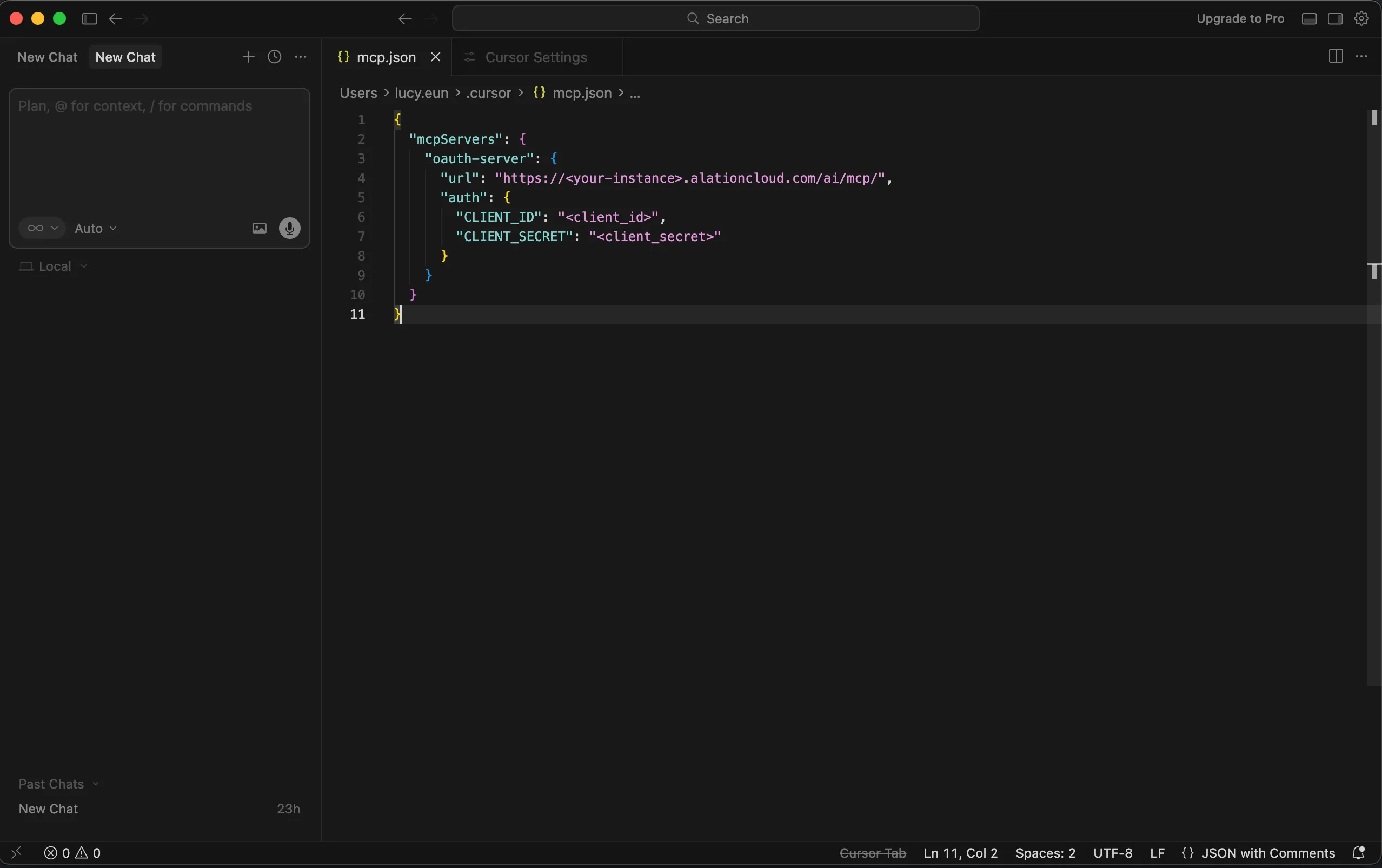
Connecting (authentication)
Section titled “Connecting (authentication)”-
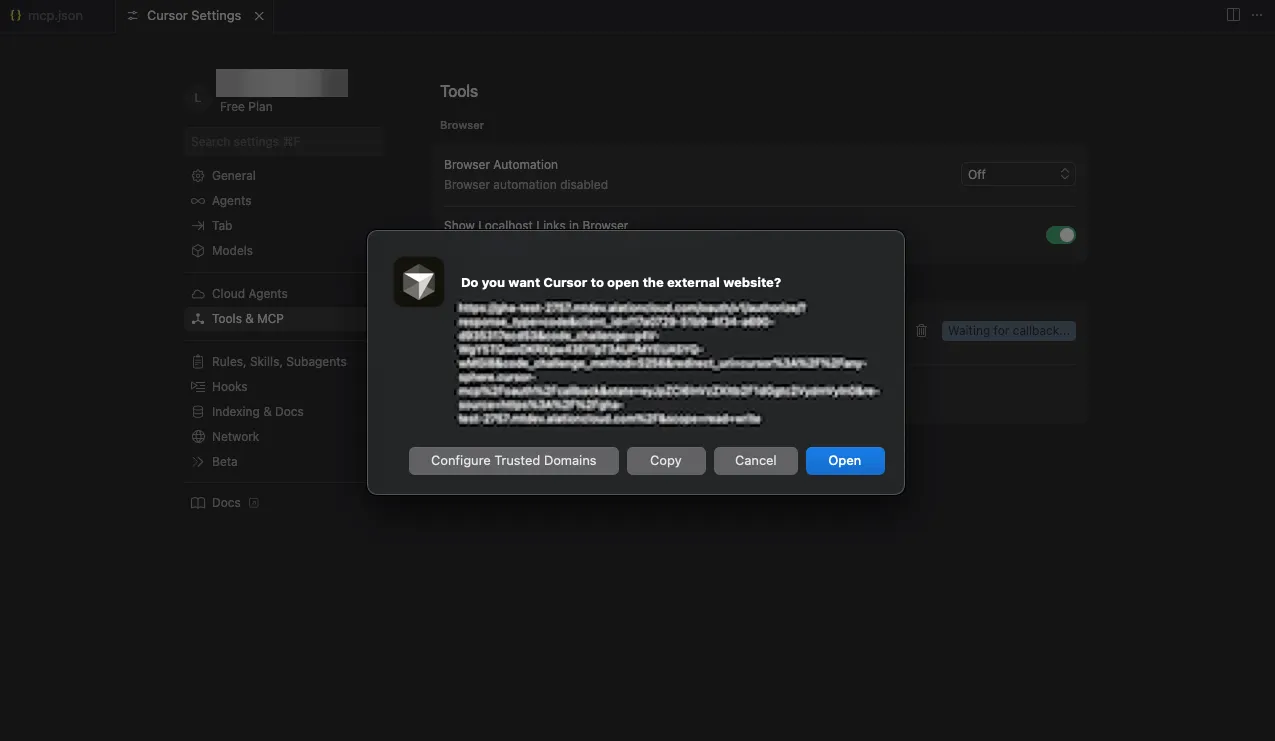
Connect to the MCP Server
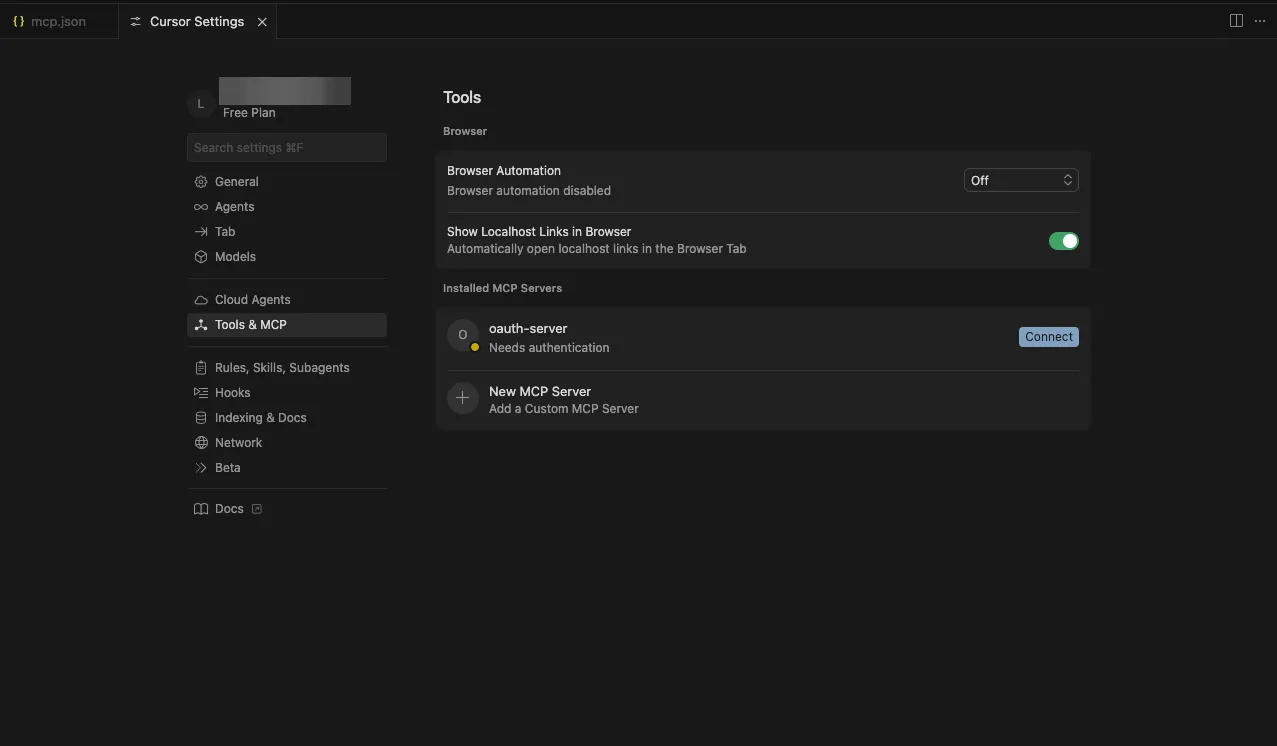
Go back to the MCP Settings page. You should see the alation mcp server under Installed MCP Servers list. Click on the Connect button next to your Alation MCP Server.
-
Authenticate
This will open a new window where you can authenticate with your Alation instance. Login with your Alation credentials.
Verify Connection
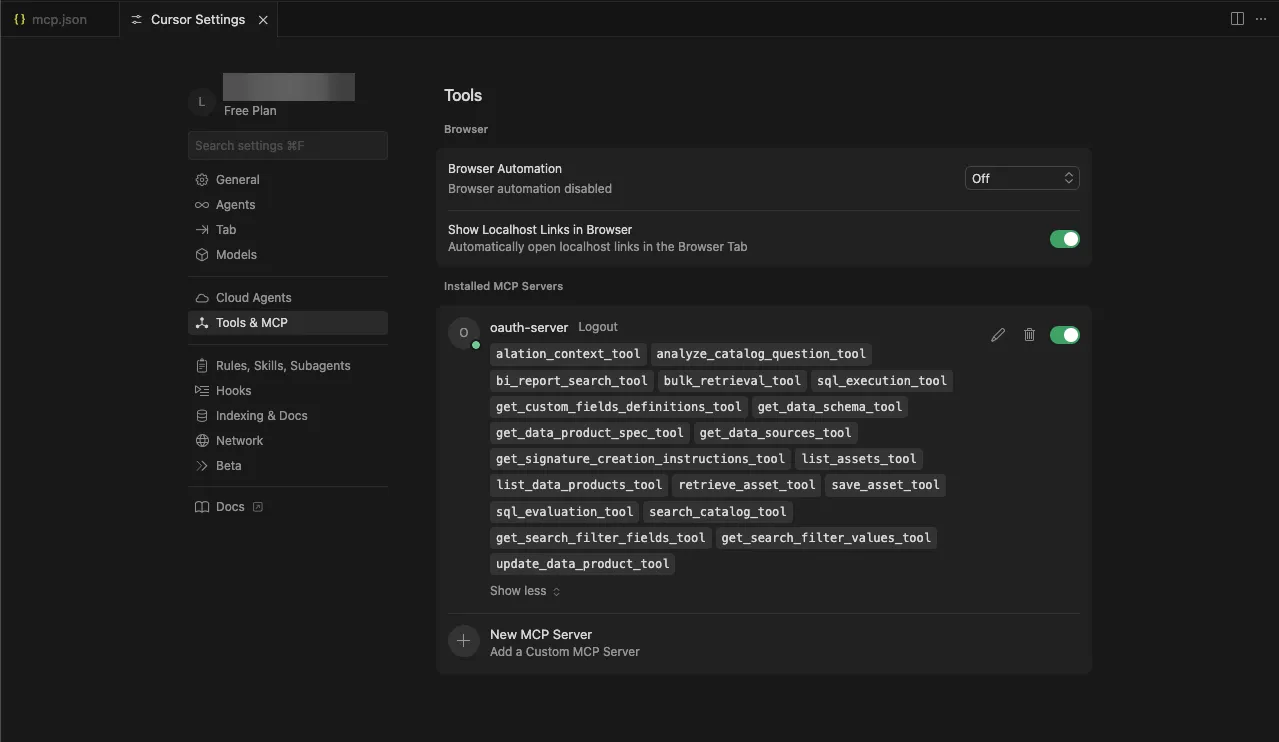
Section titled “Verify Connection”Once authenticated, you should be able to see the list of tools available.